
The Yellowdog Updater, Modified, is the default utility to manage software packages on Red Hat Enterprise Linux. On Fedora (the upstream version of RHEL) Yum has been replaced with dnf but Red Hat decided to keep the Yum name for the RHEL releases. Although you’ll be using yum, under the hood you’re in fact using dnf which is why sometimes you’ll see references to dnf or dnf resources.
The Role of Repositories #
Yum is designed to work with repositories which are depots of available software packages. Repositories makes it easy to keep your machine up to date, the maintainer of the repositories publishes updated packages and whenever you use yum to install software the most recent version is automatically used.
As an added benefit, yum manages package dependencies so you don’t have to deal with dependency hell. When a single package is installed, that same package will contain information about the required dependencies which yum will automatically install for you.
On Red Hat Enterprise Linux, you need to register the system on the Red Hat Customer Portal in order to obtain access to the Red Hat repositories. If you don’t register the system you will end up with no repositories at all, but you can create your own repo from the installation media (more on that later).
Repositories are configured in the /etc/yum.repos.d/ directory as .repo files. Each file could contain multiple repositories, but each repository should have at least the following contents:
[label]Identifies the specific repository.name=Specifies the name of the repository you want to use.baseurl=Contains the URL that points to the repo files. Can be HTTP, FTP, or a file path.
Here’s an example of one of the default CentOS 8 repositories:
[BaseOS]
name=CentOS-$releasever - Base
mirrorlist=http://mirrorlist.centos.org/?release=$releasever&arch=$basearch&repo=BaseOS&infra=$infra
#baseurl=http://mirror.centos.org/$contentdir/$releasever/BaseOS/$basearch/os/
gpgcheck=1
enabled=1
gpgkey=file:///etc/pki/rpm-gpg/RPM-GPG-KEY-centosofficial
Packages in Internet repositories are often signed with a GPG key which makes it possible to check whether they have been changed since the owner of the repository published them. If for some reason the repository security has been compromised, the GPG key signature will not match and the yum command will raise your attention about this.
GPG-signed packages are not a requirement for internal or local repositories.
Creating Your Own Repository #
It’s fairly straightforward to setup your own repository in case you can’t or don’t want to register your RHEL system. You can put your own RPM packages (or those from the installation media) in a directory and publish that directory as a repository.
If you’re not using the installation media as the source for your own repository, you will need to run the createrepo command inside your repository directory to generate the metadata for the RPM files.
You can create repo from the installation media by mounting the ISO file persistently and creating the necessary .repo file.
Create the empty /repo directory and add the following line to the bottom of the /etc/fstab file to mount the ISO file at next boot:
/path/to/file.iso /repo iso9660 defaults 0 0```Next, mount the ISO file:
[root@server1 ~]# mount /repo
mount: /repo: WARNING: device write-protected, mounted read-only.
[root@server1 ~]#
Create the /etc/yum.repos.d/mycustom.repo file and add the following content:
[AppStream]
name=AppStream
baseurl=file:///repo/AppStream
gpgcheck=0

[BaseOS]
name=BaseOS
baseurl=file:///repo/BaseOS
gpgcheck=0
Check the installed repo’s using yum repolist.
Working with Yum #
To use repositories you need the yum command. Below you’ll find an overview of the most common yum tasks.
| Command | Description |
|---|---|
| search | Searches for the string you provide in package names and summaries. |
| [what]provides */name | Look for specific files inside a package. |
| info | Return more info about a package. |
| install | Install a package. |
| remove | Remove a package. |
| list [all | installed] |
| group list | List package groups. |
| group install [–with-optional] | Install all packages from a group. |
| update | Update packages or a specific packages. |
| clean all | Remove all stored metadata. |
| history [undo |
List the command history / undo a specific command. |
To install a package you need the exact name, if you don’t know the exact name yum search can help you narrow that down. Remember it searches for the string you provide in package names and summaries, so you won’t have an exact match:
[root@server1 ~]# yum search user
============ Name & Summary Matched: user =============
trousers-lib.x86_64 : TrouSerS libtspi library
trousers-lib.i686 : TrouSerS libtspi library
trousers-lib.x86_64 : TrouSerS libtspi library
gnome-user-docs.noarch : GNOME User Documentation
gnome-user-docs.noarch : GNOME User Documentation
xdg-user-dirs.x86_64 : Handles user special directories
xdg-user-dirs.x86_64 : Handles user special directories
util-linux-user.x86_64 : libuser based util-linux utilities
util-linux-user.x86_64 : libuser based util-linux utilities
The yum provides command can help you find files inside a package which can be helpful if you know the name of the binary for example:
[root@server1 ~]# yum provides */sepolicy
policycoreutils-devel-2.9-3.el8.i686 : SELinux policy core policy devel utilities
Repo : BaseOS
Matched from:
Filename : /usr/bin/sepolicy
Filename : /usr/share/bash-completion/completions/sepolicy

policycoreutils-devel-2.9-3.el8.x86_64 : SELinux policy core policy devel utilities
Repo : BaseOS
Matched from:
Filename : /usr/bin/sepolicy
Filename : /usr/share/bash-completion/completions/sepolicy
We can obtain more information about a package using yum info:
[root@server1 ~]# yum info nmap
Available Packages
Name         : nmap
Epoch        : 2
Version      : 7.70
Release      : 5.el8
Architecture : x86_64
Size         : 5.8 M
Source       : nmap-7.70-5.el8.src.rpm
Repository   : AppStream
Summary      : Network exploration tool and security scanner
yum list | less will show us a list of available and installed packages.
If the repository name is shown, i.e. @AppStream, the package is available for installation in that repository. If @anaconda is shown, then that package has already been installed:
Installed Packages
GConf2.x86_64                 3.2.6-22.el8             @AppStream
ModemManager.x86_64           1.10.4-1.el8              @anaconda
Packages can be updated using yum update. The old version of a package is replaced with a new version, except for the kernel package. The newer kernel is installed along the old kernel so you can select the kernel you want to use in Grub when booting.
To make it easier to manage specific functionality instead of specific packages, we can work with package groups. Use yum groups list to show available package groups and yum groups info <groupname> to see what packages are in the specified group:
[root@server1 ~]# yum groups list
Last metadata expiration check: 0:00:12 ago on Wed 20 May 2020 17:01:09 +04.
Available Environment Groups:
   Server
   Minimal Install
   Workstation
   Virtualization Host
   Custom Operating System
Installed Environment Groups:
   Server with GUI
Installed Groups:
   Container Management
   Headless Management
Available Groups:
   .NET Core Development
   RPM Development Tools
   Development Tools
   Graphical Administration Tools
   Legacy UNIX Compatibility
   Network Servers
   Scientific Support
   Security Tools
   Smart Card Support
   System Tools

[root@server1 ~]# yum groups info "System Tools"
Last metadata expiration check: 0:00:25 ago on Wed 20 May 2020 17:01:09 +04.

Group: System Tools
 Description: This group is a collection of various tools for the system, such as the client for connecting to SMB shares and tools to monitor network traffic.
 Default Packages:
   NetworkManager-libreswan
   chrony
   cifs-utils
   libreswan
   nmap
   openldap-clients
   samba-client
   setserial
   tigervnc
   tmux
   xdelta
   zsh
 Optional Packages:
   PackageKit-command-not-found
   aide
   amanda-client
   arpwatch
You can use yum group install "System Tools" to install the Default Packages inside that group. If you need the Optional Packages as well, use the yum group install --with-optional "System Tools" command instead. Hidden groups can be revealed using yum groups list hidden, these are subgroups of specific groups.
Package Module Streams #
To separate core operating system packages from user-space packages, we have two main repositories: BaseOS and AppStream.
In Red Hat Enterprise Linux 8 different versions of the same package can be offered using Package Module Streams which are found inside the AppStream repo.
A module is a delivery mechanism for a set of RPM packages that belong together, and are typically organized around a specific version of an application, with all dependencies for that specific version.
Each module can have one or more streams. A stream contains one specific version. Only one stream can be enabled at the same time which means that only one version can be installed on a system.
Each module can have a default stream. Default streams make it easy to install packages using yum install without the need to learn about modules.
Module streams can be active or inactive. Active streams allow the installation of the module version. Streams are active if marked as default or if they are enabled by a user, unless the whole module has been disabled or another stream of that module is enabled.
Modules can also have one or more profiles which are a list of packages installed together for a particular use case.
Let’s have a look at some of the modules using yum module list:
[root@server1 ~]# yum module list | grep -E 'php|nginx'
nginx   1.14 [d] common [d]               nginx webserver
nginx   1.16     common                   nginx webserver
php     7.2 [d]  common [d], devel, minimal PHP scripting language
php     7.3      common, devel, minimal     PHP scripting language
Hint: [d]efault, [e]nabled, [x]disabled, [i]nstalled
From the above output we see the nginx and php modules with their respective stream (1.14 & 1.16, 7.2 & 7.3) and their profiles (common, devel, minimal). You can see the same information for a specific module using yum module list <modulename>.
For each module we can get more detailed information using yum module info <modulename> or for a specific stream using yum module info <modulename:version>:
[root@server1 ~]# yum module info php:7.3
Last metadata expiration check: 0:02:58 ago on Thu 21 May 2020 09:05:40 +04.
Name         : php
Stream       : 7.3
Version      : 8010020191122191516
Context      : 2430b045
Architecture : x86_64
Profiles     : common, devel, minimal
Repo         : AppStream
Summary      : PHP scripting language
Description  : php 7.3 module
...........
To investigate packages in a specific application stream, we use yum module info –profile <modulename:version>. This will list the available profiles and the packages for that specific profile:
[root@server1 ~]# yum module info --profile php:7.3
Last metadata expiration check: 0:06:09 ago on Thu 21 May 2020 09:05:40 +04.
Name    : php:7.3:8010020191122191516:2430b045:x86_64
common  : php-cli
        : php-common
        : php-fpm
        : php-json
        : php-mbstring
        : php-xml
devel   : libzip
        : php-cli
        : php-common
        : php-devel
        : php-fpm
        : php-json
        : php-mbstring
        : php-pear
        : php-pecl-zip
        : php-process
        : php-xml
minimal : php-cli
        : php-common
Once you have the necessary information, we can enable a module stream and install the module. Every module has a default module stream, if that is the version you need then you don’t need to enable anything.
If, for example, we need php7.3 we would need to enable it before installing it. Note that this will also enable dependencies:
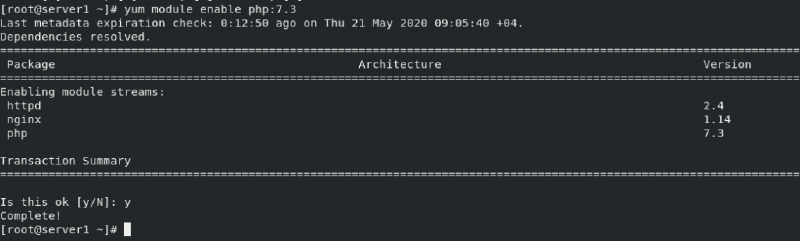
You can now install the module with with yum module install php.
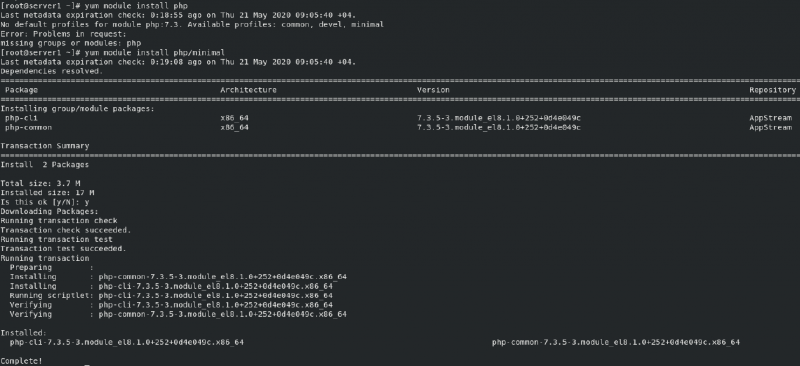
Notice in the above output how yum was complaining there was no default profile set for the PHP7.3 stream, so I needed to specify profile using yum module install php/minimal.
Now that I have PHP7.3 installed, I can easily switch to PHP7.2. I don’t have to enable the PHP7.2 module stream since that one is the default.
[root@server1 ~]# yum module reset php
[root@server1 ~]# yum module install php:7.2/minimal
[root@server1 ~]# yum distro-sync
yum distro-sync ensures that all dependent packages which are not in the module itself are updated as well. The output of this command should be:
Dependencies resolved.
Nothing to do.
Complete!
When using yum install packagename, the default module stream of a package will be installed if that module stream is enabled. You would only need to use yum module install packagename:version>/profile if you have specific version and/or profile requirements.
Querying Software Packages with RPM #
There are two reasons why you should not use the rpm command to manage software packages.
- Yum takes care of resolving package dependencies for you while
rpmdoes not. - There are two package databases on a RHEL system, the YUM database and the RPM database. When you install packages via
yum, the YUM database is updated first and the information is synchronized with the RPM database. Installing packages with RPM will update the RPM database only.
That doesn’t mean RPM isn’t useful. If you downloaded an RPM package you can still install it via yum install package.rpm.
More importantly, the rpm command enables us to get more information about packages:
We can use rpm -qa to show a list of all software that is installed on the system, similar to yum list installed. We can use grep on this command to find out specific package names: rpm -qa | grep php
root@server1 ~]# rpm -qa | grep php
php-common-7.2.11-2.module_el8.1.0+209+03b9a8ff.x86_64
php-cli-7.2.11-2.module_el8.1.0+209+03b9a8ff.x86_64
Let’s find out more about the php-common package usin rpm -qi:
[root@server1 ~]# rpm -qi php-common
Name        : php-common
Version     : 7.2.11
Release     : 2.module_el8.1.0+209+03b9a8ff
Architecture: x86_64
Install Date: Thu 21 May 2020 09:31:12 +04
Group       : Unspecified
Size        : 6472361
License     : PHP and BSD
Signature   : RSA/SHA256, Thu 05 Dec 2019 06:42:19 +04, Key ID 05b555b38483c65d
Source RPM  : php-7.2.11-2.module_el8.1.0+209+03b9a8ff.src.rpm
Build Date  : Thu 14 Nov 2019 08:15:12 +04
Build Host  : x86-01.mbox.centos.org
Relocations : (not relocatable)
Packager    : CentOS Buildsys <bugs@centos.org>
Vendor      : CentOS
URL         : http://www.php.net/
Summary     : Common files for PHP
Description :
The php-common package contains files used by both the php
package and the php-cli package.
We can list the files inside the package using rpm -ql:
[root@server1 ~]# rpm -ql php-common
/etc/php.d
/etc/php.d/20-bz2.ini
/etc/php.d/20-calendar.ini
/etc/php.d/20-ctype.ini
.....
Or, we can list only the documentation using rpm -qd, or the configuration files using rpm -qc:
[root@server1 ~]# rpm -qd php-common
/usr/share/doc/php-common/CODING_STANDARDS
/usr/share/doc/php-common/CREDITS
.....
[root@server1 ~]# rpm -qc php-common
/etc/php.d/20-bz2.ini
/etc/php.d/20-calendar.ini
/etc/php.d/20-ctype.ini
...
If you have a filename and want to know what package it belongs to, use rpm -qf:
[root@server1 ~]# rpm -qf /bin/bash
bash-4.4.19-10.el8.x86_64
[root@server1 ~]# rpm -qf /bin/lsblk
util-linux-2.32.1-17.el8.x86_64
All the above queries were used on the RPM database and what we were querying were installed packages. Sometimes it makes sense to query an RPM package file before installing it, in that case we need to add the -p option in addition to any of the previous mentioned options. We can use yumdownloader to download a specific package from our repository to run an RPM query against it before installing it:
[root@server1 ~]# yum whatprovides */yumdownloader
Last metadata expiration check: 0:00:38 ago on Thu 21 May 2020 20:34:10 +04.
yum-utils-4.0.8-3.el8.noarch : Yum-utils CLI compatibility layer
Repo        : BaseOS
Matched from:
Filename    : /usr/bin/yumdownloader

[root@server1 ~]# yum install yum-utils -y
....

[root@server1 ~]# yumdownloader httpd
[root@server1 ~]# rpm -qpi httpd-2.4.37-16.module_el8.1.0+256+ae790463.x86_64.rpm
Name        : httpd
Version     : 2.4.37
Release     : 16.module_el8.1.0+256+ae790463
....
We can also query packages directly from the repository instead of downloading the package first. Use the repoquery command for this.
| Command | Description |
|---|---|
| rpm -qf | Use a filename to find the specific RPM package the file belongs to |
| rpm -ql | Provide a list of files inside the RPM package |
| rpm -qi | Provide package information |
| rpm -qd | Show all documentation available in the package |
| rpm -qc | Show all configuration files |
| rpm -q -scripts | Show scripts that are used in the package |
| rpm -qp |
Query individual .rpm files instead of the RPM database |
| rpm -qR | Show package dependencies |
| rpm -V | Shows which parts of a package has been changed since installation. |
| rpm -Va | Verifies all installed packages and shows which part of the package has been changed since installation. |
| rpm -qa | List all installed packages |